
In today’s rapidly evolving educational landscape, digital tools have become essential for efficient teaching and learning. Among these tools, CamScanner stands out as a powerful solution for turning traditional paper resources into easily accessible digital content. Whether you’re a teacher aiming to streamline your workflow or a student trying to stay organized, CamScanner offers a simple yet transformative way to manage classroom materials.
This guide explores how CamScanner can be used effectively in education, its benefits, best practices, and advanced tips to help you make the most of digital learning resources.
Introduction to CamScanner in Education
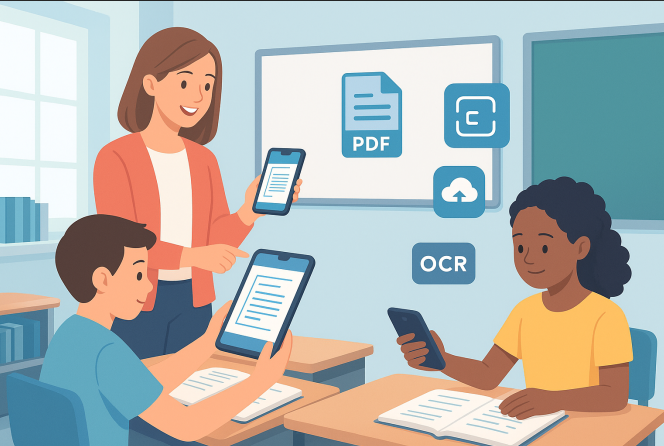
CamScanner is far more than a basic mobile scanner—it serves as a bridge between traditional paper-based learning and modern digital education. By converting handouts, assignments, notes, worksheets, and other learning materials into digital files, both teachers and students can enjoy improved organization, better accessibility, and enhanced collaboration.
Imagine having all your class materials neatly stored on your phone, tablet, or laptop—ready to access whenever you need them. CamScanner makes this possible.
Why Digitization Matters in Today’s Classrooms
Digitizing classroom materials is no longer optional—it’s a practical necessity. Here’s why:
Challenges of Traditional Paper-Based Learning
Paper-heavy classrooms come with several issues:
- Students often misplace worksheets or notes.
- Paper gets easily damaged, torn, or lost.
- Sharing resources between classmates or teachers becomes time-consuming.
- Storing stacks of assignments and handouts is inefficient and messy.
These challenges make it difficult for students to stay organized and for teachers to maintain consistent workflow.
Benefits of Going Digital With CamScanner
Switching to digital materials offers numerous advantages:
- Instant searchability: Find notes and documents quickly.
- Easy sharing: Send files with a tap through email, classroom apps, or cloud platforms.
- Improved accessibility: Learning materials are available from any device.
- Backup protection: Reduce the risk of losing important assignments or study notes.
With CamScanner, paper documents become high-quality PDFs or images—organized, easy to share, and protected.
Getting Started With CamScanner for Students & Teachers
Installing and Setting Up the App
CamScanner is available on Android and iOS.
To get started:
- Download the app from the app store.
- Create an account or sign in.
- Familiarize yourself with the interface.
The app is designed to be intuitive, ensuring that even first-time users can begin scanning within minutes.
Creating Your First Scan
To scan a document:
- Open the app and tap the camera icon.
- Position your device over the page.
- CamScanner automatically detects edges and adjusts clarity.
- Save the file in your preferred format.
Within seconds, your paper material is transformed into a crisp, digital document.
Scanning Notes and Handouts Like a Pro
Tips for High-Quality Scans
Use these simple techniques to ensure clear, readable scans:
- Shoot in good lighting for best results.
- Keep your device steady to avoid blur.
- Use a clean, contrasting background behind the paper.
- Apply CamScanner’s enhancement filters to boost clarity, especially for handwritten notes.
Organizing Your Digital Materials
With CamScanner, you can create:
- Folders
- Subfolders
- Tags
- Categories
Organize files by subject, chapter, date, or project. A well-structured digital library saves time and makes reviewing much easier.
Converting Scans to PDFs and Other Formats
Understanding File Format Options
CamScanner supports multiple export formats:
- PDF – best for sharing, printing, archiving
- JPEG – useful for visual presentations or inserting into slides
Choose the format that best suits your assignment or workflow.
Sharing Scanned Documents Easily
CamScanner makes sharing incredibly simple. You can send files through:
- Instant messaging apps
- Google Drive or OneDrive
- Learning management systems (LMS) like Google Classroom
This supports remote learning, group projects, and quick classroom communication.
Annotating and Editing Scanned Documents
Highlighting, Adding Notes, and Making Comments
Students can annotate lecture notes digitally, while teachers can mark assignments and highlight important areas. Features include:
- Highlighting text
- Adding comments or notes
- Drawing diagrams
- Marking corrections
This promotes interactive and detailed feedback.
Using OCR for Editable Text
CamScanner’s OCR (Optical Character Recognition) converts printed or handwritten text into editable digital text. This is incredibly useful for:
- Extracting text from textbooks
- Creating digital study notes
- Editing or updating documents
- Reducing manual typing
OCR turns scanned pages into editable, copyable content—saving time and improving productivity.
Integrating CamScanner With Educational Tools
Seamless Collaboration With Google Classroom & LMS Platforms
CamScanner works smoothly with popular learning platforms. Users can upload their files directly to:
- Google Classroom
- Google Drive
- Dropbox
- OneDrive
- School LMS portals
This promotes smooth workflows and easy collaboration between teachers and students.
Cloud Storage & Backup
To prevent data loss, CamScanner supports secure cloud backup. Your files are synced across devices, making them accessible anytime—even if a phone is lost or changed.
Boosting Productivity for Students & Teachers
Organizing Study Materials Efficiently
Students can build digital libraries for:
- Lecture notes
- Assignments
- Past papers
- Study guides
Teachers can store:
- Lesson plans
- Worksheets
- Exam papers
- Resource materials
This reduces preparation time and keeps everything neatly organized.
Reducing Paper Clutter in the Classroom
A digital classroom:
- Minimizes paper waste
- Reduces costs
- Keeps workspaces tidy
- Encourages eco-friendly habits
Digitization improves both productivity and sustainability.
Security & Privacy: Protecting Your Documents
Protecting Sensitive Educational Files
Schools often deal with confidential documents. CamScanner helps secure them with:
- Password-protected folders
- Encrypted storage
- Private sharing options
This is especially important for exam papers, student records, and administrative files.
Best Practices for Safe Document Sharing
For secure file sharing:
- Avoid sending sensitive documents through open channels.
- Use encrypted cloud services.
- Follow school-approved sharing policies.
This ensures privacy and protects student information.
Advanced Tips & Tricks for Classroom Efficiency
Batch Scanning Multiple Pages
Teachers who need to digitize entire booklets or multi-page handouts can use CamScanner’s batch scan feature to capture many pages quickly and combine them into one neat PDF.
Using CamScanner Templates for Repetitive Tasks
Save time by creating templates for:
- Assignments
- Worksheets
- Lecture note formats
- Standardized classroom forms
Templates ensure consistency and reduce repetitive work.
Case Studies: How Schools Use CamScanner Successfully
Many schools worldwide have integrated CamScanner into their digital workflows. Educators report:
- Faster assignment feedback
- Improved classroom organization
- Higher student engagement
Students appreciate being able to access materials anytime, stay organized, and collaborate easily during group tasks.
Conclusion
CamScanner is a versatile, classroom-friendly tool that transforms the way students and teachers manage educational materials. By digitizing notes, handouts, assignments, and resources, learning becomes more organized, collaborative, and efficient.
Whether you’re stepping into digital learning for the first time or looking to optimize your workflow, CamScanner offers everything you need to build a modern, tech-enabled classroom. Start scanning today and unlock a smarter way to learn and teach!
FAQs
1. Can CamScanner scan both handwritten and printed notes?
Yes. CamScanner captures both clearly, and its OCR feature can even convert many handwritten texts into editable digital content.
2. Is it safe to store educational documents on CamScanner?
Yes—use private folders, passwords, and secure cloud backups to protect sensitive files.
3. Can multiple students access the same scanned materials?
Absolutely. You can share files via cloud storage, email, or classroom platforms so all students can access them easily.
4. Does CamScanner work offline?
You can scan documents offline, but cloud backup and sharing require an internet connection.
5. How can teachers use CamScanner to give feedback on assignments?
Teachers can annotate and comment directly on scanned papers, giving clear and timely digital feedback.