
In the fast-paced life of a student, staying organized can be a challenge. From lecture notes to homework assignments, managing paper and digital materials can feel overwhelming. This is where CamScanner comes in—a powerful app designed to turn your smartphone into a portable scanner. In this guide, we will explore how students can leverage CamScanner to scan, organize, and share notes and assignments efficiently.
Introduction: Why CamScanner is a Game-Changer for Students
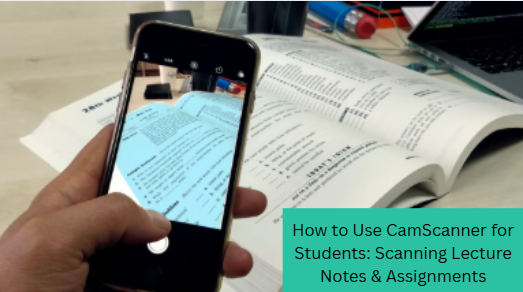
Imagine never losing a page of your lecture notes again. CamScanner makes this possible by allowing students to instantly scan documents, convert them to PDFs, and store them digitally. Whether you’re in the library, classroom, or at home, CamScanner ensures that your study materials are always at your fingertips. Plus, it saves paper, reduces clutter, and streamlines the way you manage your studies.
Getting Started with CamScanner
Downloading and Installing the App
CamScanner is available for both Android and iOS devices. Simply visit the Google Play Store or Apple App Store, search for “CamScanner,” and tap Install. Once installed, the app will request permissions to access your camera and storage—permissions crucial for scanning and saving documents.
Setting Up Your CamScanner Account
After installation, create a free account using your email, Google, or Apple ID. While optional, an account allows you to sync documents across devices, access cloud backups, and retrieve files if you switch phones.
Scanning Lecture Notes Efficiently
Choosing the Right Mode for Notes
CamScanner has multiple modes: Auto, Batch, and ID Card Mode. For lecture notes, Auto Mode is ideal. It automatically detects document edges and adjusts perspective for clear scans. If you have multiple pages, use Batch Mode to scan them consecutively without stopping.
Tips for Clear and Readable Scans
Lighting is crucial—always scan in a well-lit environment to avoid shadows. Hold your phone steady and keep the document flat. CamScanner also allows you to enhance scans with filters like “Lighten” or “Magic Color,” making handwritten notes more legible.
Organizing Scanned Notes by Subject
Once scanned, you can organize notes into folders labeled by subject or semester. Naming files with dates and topics helps locate them quickly during exam preparation.
Scanning Assignments and Homework
Capturing Text and Images Accurately
For assignments with charts or diagrams, ensure the entire page fits in the camera frame. Use the crop and rotate features to correct any misalignment.
Using OCR to Edit and Search Text
One of CamScanner’s standout features is OCR (Optical Character Recognition). It allows you to convert scanned images into editable text. This is perfect for quickly searching keywords or copying content for assignments without retyping.
Saving and Sharing Assignments Easily
After scanning, CamScanner allows saving in PDF or JPEG format. You can share documents directly via email, WhatsApp, Google Drive, or Dropbox—making group projects and submissions seamless.
Advanced Features for Students
Annotating Notes within CamScanner
Highlight important points, add comments, or draw diagrams directly on your scanned notes. This reduces the need for printing and manual annotation, keeping your study materials digital and organized.
Cloud Storage and Backup Options
CamScanner supports cloud storage, ensuring that your scanned notes are safe even if your device is lost. Platforms like Google Drive, Dropbox, and CamScanner Cloud provide easy backup solutions.
Integrating with Study Tools
You can integrate scanned notes with tools like Evernote, Notion, or OneNote, making it easier to create study plans, flashcards, and collaborative resources.
Tips to Maximize Productivity with CamScanner
Daily Scanning Routine
Scan lecture notes immediately after class to avoid backlog. Use batch scanning for multiple pages and organize them into appropriate folders for easy retrieval.
Avoiding Common Scanning Mistakes
Ensure pages are flat and the camera is aligned properly. Avoid scanning under poor lighting, and always double-check for missing pages or blurry scans.
Security and Privacy Considerations
While CamScanner is safe, always enable app-level passwords for sensitive documents. Avoid sharing personal data publicly and use cloud storage cautiously to prevent unauthorized access.
Conclusion
CamScanner transforms how students handle academic materials, making note-taking, assignments, and project work far more manageable. By mastering scanning techniques, organizing files, and using advanced features like OCR and annotations, students can boost productivity and study efficiency significantly. Whether you’re a high school student or in college, CamScanner is a must-have digital companion for academic success.