
Managing dozens—or even hundreds—of scanned documents can become overwhelming fast. Whether you handle receipts, contracts, academic notes, or business papers, staying organized is essential. CamScanner, one of the most powerful mobile scanning apps, gives you everything you need to create a clean, searchable, and well-structured digital library.
This guide walks you through proven strategies to organize, manage, secure, and retrieve your scanned files effortlessly.
Introduction
In today’s digital-heavy world, paperwork hasn’t disappeared—it has simply changed shape. We still deal with receipts, legal documents, invoices, handwritten notes, and more. While scanning these papers helps eliminate clutter, unorganized digital files can become just as messy as physical stacks of paper.
CamScanner solves this problem by giving you tools for smooth scanning, labeling, sorting, searching, and securing your documents. Let’s explore how to make the most of these features.
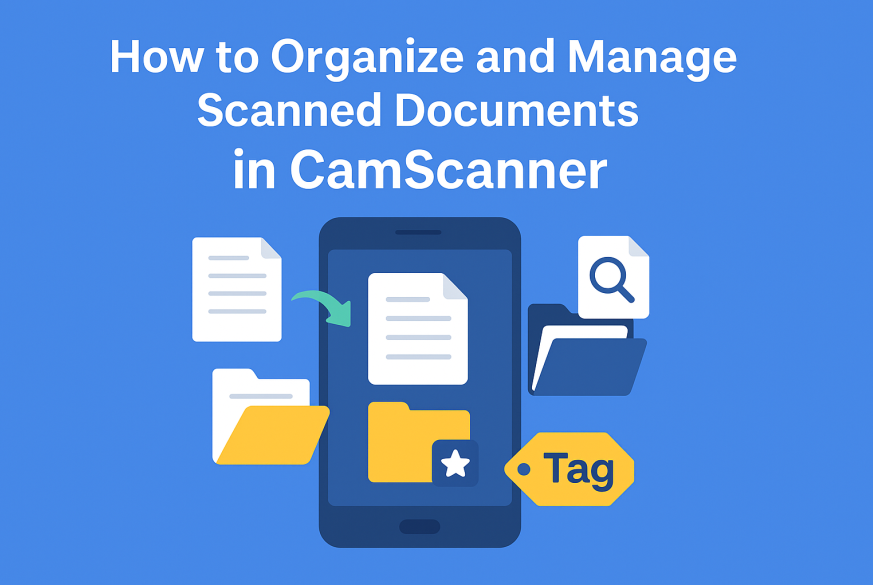
Why Organizing Digital Documents Matters
Without structure, your files scatter across folders, downloads, devices, and apps. This leads to:
- Wasted time searching
- Duplicate files
- Missing documents
- Inefficient workflows
A well-organized CamScanner setup ensures:
✔ Quick retrieval
✔ Secure storage
✔ Smooth collaboration
✔ Better productivity
What is CamScanner?
CamScanner is a popular mobile app available on Android and iOS, designed for scanning and digitizing real-world documents using your phone’s camera. Beyond scanning, it offers OCR, folders, tags, cloud sync, collaboration tools, editing options, and secure sharing, making it a complete solution for document management.
Key CamScanner Features for Document Management
CamScanner’s organizational features include:
- Batch scanning for multi-page documents
- Custom folders and subfolders
- Tags, which act like searchable keywords
- OCR text recognition
- Cloud sync and backup
- Sorting and filtering tools
These features collectively ensure your files stay tidy and accessible.
Setting Up Your CamScanner Account
Before organizing, create a CamScanner account. This helps preserve your settings and keeps your documents synced across all your devices. Your scans will be accessible on your phone, tablet, and desktop without extra steps.
Syncing CamScanner Across Multiple Devices
With an account, you can work from anywhere. Scan on your phone, annotate on your tablet, and download the file on your computer—all seamlessly synced using CamScanner Cloud or third-party storage providers.
Adjusting Default Scan and Storage Settings
To keep everything consistent and professional, configure your default settings:
- Choose PDF for documents
- Enable Auto-enhance for clarity
- Set a default folder for saving scans
- Turn on automatic edge detection
This ensures every scan meets your preferred format without manual tweaks.
Tips for Capturing High-Quality Scans
Good organization starts with good scans. To get crisp, clear results:
- Scan in a well-lit area
- Keep your phone steady
- Remove shadows
- Align the document properly
- Use CamScanner’s magic color or grayscale filters
Clean scans improve readability and enhance OCR accuracy.
How to Use Batch Scanning for Faster Workflow
If you handle multiple documents regularly—such as receipts, worksheets, or exam notes—batch scanning is a lifesaver.
It lets you capture several pages continuously and save them as:
- A single multi-page PDF
- Individual files
This dramatically cuts scanning time and keeps related pages together.
Creating Folders to Organize Your Documents
Folders act as the backbone of your digital filing system. Start with broad categories such as:
- Work
- Personal
- Finance
- Education
- Receipts
This ensures your workspace never feels cluttered.
Structuring Subfolders for Better Categorization
Take organization a step further by creating subfolders. For example:
- Work → Client A → Contracts
- Receipts → 2025 → January
- Education → Semester 3 → Assignments
Clear structure means faster access—and less time wasted searching.
Using Tags to Improve Document Searchability
Tags function like keywords. They help you find documents even when you forget the folder name.
Tag examples:
- Tax
- Warranty
- Legal
- Paid
- ProjectX
Searching by tag instantly filters your entire library.
Renaming Files for Better Clarity and Retrieval
Avoid default names like Scan001.jpg. Instead, rename documents with meaningful titles such as:
- Invoice_Apple_March2025
- Contract_JohnDoe_Signed
- Receipt_Amazon_11Nov2025
Smart file names = faster search and better categorization.
Marking Important Documents with Favorites
For documents you frequently access—like contracts, IDs, or monthly reports—use CamScanner’s Favorites feature. It acts like a shortcut to your most important files.
Sorting and Filtering Options for Easy Browsing
CamScanner allows sorting by:
- Date
- File size
- Name
And filtering by:
- PDFs
- Images
- Tagged files
- Recent scans
These tools help you locate files instantly, even in large collections.
Connecting CamScanner with Cloud Storage Services
For better protection and convenience, connect CamScanner to:
- Google Drive
- Dropbox
- OneDrive
- Box
Saving directly to cloud storage ensures your documents stay accessible across devices and safely stored.
Enabling Automatic Cloud Backup
Turn on automatic backup to avoid losing files if your device is lost, damaged, or reset. This gives you complete peace of mind knowing every new scan is stored securely.
Securely Sharing Documents via Email or Links
CamScanner lets you share documents via:
- Secure links
- Social apps
You can also add: - Password protection
- Expiration dates
This ensures sensitive documents remain private.
Collaboration Tools Within CamScanner
For teams or students, CamScanner supports collaboration through:
- Shared folders
- Commenting
- Annotation tools
This makes working on proposals, group assignments, or client documents much easier.
Using OCR for Text Search and Extraction
OCR allows you to convert scanned images into searchable, editable text.
Benefits include:
- Copying text from images
- Finding words inside long documents
- Faster research and referencing
This feature is extremely useful for students, researchers, and office workers.
Adding Watermarks and Password Protection
If you’re handling confidential files, CamScanner lets you:
- Add watermarks
- Lock documents with passwords
- Restrict forwarding
These security layers protect sensitive information from unauthorized viewing.
Common Document Management Mistakes to Avoid
To keep your digital library clean and efficient, avoid:
❌ Vague file names
❌ Not using tags
❌ Ignoring backups
❌ Saving everything in one folder
❌ Forgetting batch scan mode
Good habits now prevent chaos later.
Conclusion: Build a Clean, Efficient Digital Library
Organizing your scanned documents in CamScanner doesn’t have to be complicated. With folders, tags, smart file names, cloud backup, and OCR, you can build a neatly structured digital archive that is both secure and easy to navigate.
By following these best practices consistently, you’ll enjoy a smooth workflow with instant access to any document—anytime, anywhere.
FAQs About CamScanner Document Management
Q1: Can deleted documents be recovered?
Yes. Deleted files first move to the Trash folder, where you can restore them before they are permanently removed.
Q2: Does CamScanner offer free document management?
The free version includes essential features. Premium unlocks advanced tools like OCR, unlimited cloud storage, and batch scanning.
Q3: Is my data safe in CamScanner?
Yes. You can enable encryption, document passwords, and secure cloud storage for extra protection.
Q4: Can CamScanner search for text inside scanned images?
Absolutely. With OCR, you can search any text within your documents.
Q5: Does CamScanner allow collaboration?
Yes. You can share files, annotate together, and invite team members to collaborate in real time.