
Introduction: What a Fully Digital Office Really Means
In today’s fast-evolving business world, going digital isn’t just a trend—it’s a competitive necessity. A paperless office frees companies from the limitations of physical documents, enhances productivity, and creates smoother workflows. With tools like CamScanner, businesses can now digitize, organize, store, and manage documents effortlessly from any device.
This guide explains, step-by-step, how to transform your traditional office into a fully digital workspace using CamScanner.
Why More Businesses Are Transitioning to a Paperless Model
Environmental Advantages
A digital office drastically reduces paper consumption. By cutting back on printing and physical storage, organizations help protect forests, minimize waste, and lower their overall carbon footprint. A greener workflow begins with eliminating paper.
Significant Cost Savings
Hard-copy document management is surprisingly expensive. Costs include:
- Printing
- Ink and paper purchasing
- Physical storage
- Filing cabinets
- Shredding and archiving services
Going digital removes these recurring expenses and allows businesses to invest in more important areas.
Boosted Workflow Efficiency
Digitized documents are instantly:
- Searchable
- Shareable
- Accessible from any device
Team members no longer waste time hunting for misplaced files—everything is organized and available in seconds.
Understanding the Role of CamScanner in Digital Transformation
Why CamScanner Is a Must-Have Tool
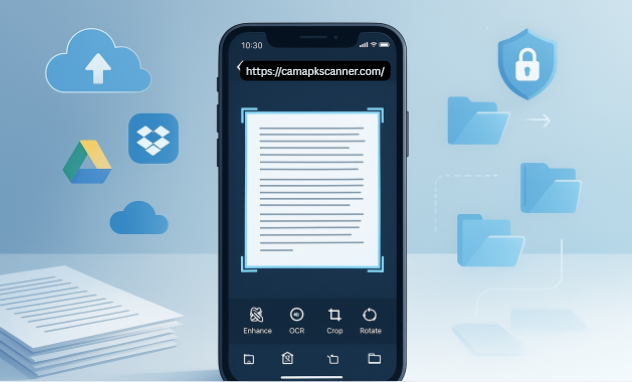
CamScanner converts any smartphone into a secure and high-quality document digitization system. Its powerful features streamline administrative tasks, making it essential for creating a digital office workflow.
Key Features That Support Paperless Operations
- Ultra-clear document scanning
- OCR (Optical Character Recognition) for text extraction
- Cloud sync and auto-backup
- Secure, encrypted file sharing
- Annotation, comments, and editing tools
- Multi-format export (PDF, JPG, TXT & more)
Step-by-Step Guide to Creating a Fully Digital Office Using CamScanner
Step 1: Digitize All Existing Paper Documents
Prepare Physical Documents for Scanning
Sort documents into categories such as:
- Finance
- HR
- Legal
- Projects
- Client-related files
Remove pins, flatten pages, and prioritize urgent documents.
Use CamScanner’s Smart Enhancement Tools
CamScanner automatically improves brightness, sharpness, and clarity. Even old, faded, or damaged pages look clean and professionally scanned.
Step 2: Organize and Categorize Your Digital Files
Create an Easy-to-Navigate Folder Structure
Build folders that mirror your traditional filing cabinet. Keep them simple, intuitive, and consistent.
Use Systematic File Naming and Tags
A clear naming format ensures fast searching. Examples:
- 2025_Invoice_ClientName
- HR_Contract_EmployeeName
Tags act as an additional layer of organization, boosting search precision.
Step 3: Set Up Cloud Storage and Automatic Backups
Choose the Best Cloud Platforms Compatible with CamScanner
Popular integrations include:
- Google Drive
- Dropbox
- OneDrive
- Box
These platforms sync directly with CamScanner for seamless access.
Enable Auto-Backup for Security
Turn on automatic backups so your documents remain safe even if your device is lost, stolen, or damaged.
Step 4: Use Secure Document Sharing
Share Files Through Encrypted Links or Password-Protected PDFs
CamScanner lets you generate shareable links or lock documents with passwords, ensuring that sensitive information stays protected.
Set Role-Based Permissions
You can control who can:
- View
- Comment
- Edit
- Download
This improves accountability and prevents unauthorized access.
Step 5: Collaborate Digitally With Your Team
Leverage Annotations, Notes, and Comments
Highlight important areas, add reminders, or leave instructions directly on the document to improve team communication.
Automate Workflow Approvals
Integrate CamScanner with third-party tools to streamline:
- Approval cycles
- Digital signatures
- Review processes
This reduces delays and repetitive manual tasks.
Step 6: Integrate CamScanner With Your Existing Office Tools
Use CRM, ERP, and Project Management Platforms
Upload digitized documents to software such as:
- Trello
- Asana
- Salesforce
- Your company’s ERP
This helps create a unified, automated workflow.
Share Documents Through Email and Communication Apps
Easily send files through:
- Gmail
- Slack
- Microsoft Teams
Collaboration becomes almost instant.
Step 7: Establish Company-Wide Digital Office Policies
Define Document Retention and Archival Rules
Determine how long documents should be stored, when they need archiving, and what should be deleted.
Improve Access Control and Security
Set up:
- Role-based access
- Two-factor authentication
- Password policy guidelines
- Strict document-sharing rules
This protects your digital office from security risks.
Best Practices for Maintaining a Fully Paperless Office
Conduct Regular Digital Audits
Review your folders every few months to remove outdated files, reorganize cluttered sections, and ensure everything remains easy to navigate.
Train Your Staff on Digital Workflows
A fully digital office is effective only when the entire team understands:
- Scanning practices
- File naming standards
- Sharing etiquette
- Security protocols
Use Automation for Long-Term Scalability
Automate tasks such as:
- Backups
- Document sorting
- Approval workflows
Automation ensures efficiency even as your office grows.
Common Mistakes to Avoid When Going Paperless
Not Using Consistent File Naming
Random file names make searches difficult and disrupt your workflow.
Neglecting Backup Systems
Without backups, a digital office can suffer data loss just as easily as a physical office could lose printed files.
Inadequate Staff Training
A paperless system fails when team members don’t follow the same structure or don’t understand the tools.
Conclusion
Transforming your office into a fully digital workspace using CamScanner is both practical and highly cost-effective. By digitizing documents, organizing them efficiently, and setting up strong internal policies, your business can enjoy a streamlined, environmentally friendly, and secure workflow. Follow the steps outlined in this guide, and you’ll eliminate paper clutter permanently while boosting productivity across your entire organization.
FAQs
1. Is CamScanner secure enough for business use?
Yes. CamScanner includes encrypted sharing, secure cloud backups, and advanced security tools that protect sensitive business documents.
2. Can CamScanner replace a traditional office scanner?
Absolutely. Its high-resolution scanning and OCR capabilities cover nearly all the functions of a desktop scanner.
3. How long does it take to build a fully digital office?
Small offices might complete the transition in a few days, while larger companies may require several weeks.
4. Does CamScanner support team collaboration?
Yes. You can share folders, add annotations, leave comments, and set access permissions.
5. Which cloud service is best for CamScanner users?
Google Drive and Dropbox are the most widely used, but the best option depends on your business’s workflow and storage needs.