
Digital document management has evolved rapidly, and apps like CamScanner have made it incredibly simple to scan, edit, and annotate documents directly from your mobile device. Whether you’re a student reviewing notes, a professional handling contracts, or a casual user organizing paperwork, document annotation is essential for clarity and effective communication.
This guide walks you through everything you need to know about annotating, highlighting, and marking up documents in CamScanner—step by step.
Introduction: Understanding Document Annotation in CamScanner
Annotation may sound technical, but it simply refers to adding highlights, comments, marks, or visual cues to a document. With CamScanner, this process becomes smooth and intuitive, allowing users to enhance their documents without needing complex desktop software.
Why Document Annotation Matters in Digital Workflows
The Shift Toward Mobile Document Editing
Gone are the days when editing PDFs required a laptop or desktop. CamScanner brings powerful markup tools to your smartphone, enabling you to annotate documents anytime, anywhere.
How CamScanner Streamlines Digital Markups
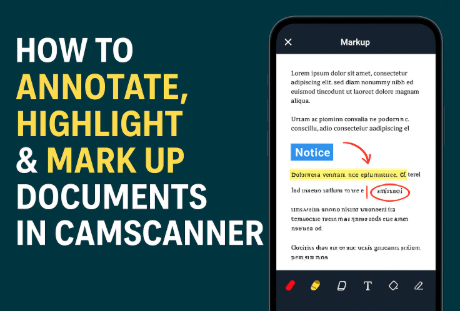
From highlighting to freehand drawing, CamScanner equips you with all the essential annotation tools within a clean and user-friendly interface. This makes reviewing, correcting, and organizing documents significantly easier.
Getting Started: Preparing Your Document in CamScanner
Install CamScanner on Your Mobile Device
CamScanner is available on both Android and iOS. Simply download it from the Google Play Store or App Store to begin.
Scan or Upload Your Document
You can:
- Scan a new document using your phone camera
- Import an existing file from your device gallery or file manager
Once your document is added to the library, you’re ready to start annotating.
Complete Overview of CamScanner Markup Tools
1. Highlight Tool
Use the highlight tool to emphasize key text, dates, formulas, or important statements.
When to Use Highlights
- Studying and reviewing notes
- Marking critical information
- Organizing long documents
2. Underline Tool
The underline feature adds emphasis without covering text, making reading easier and faster.
3. Strikethrough Tool
The strikethrough option is ideal for marking incorrect or outdated information while keeping it visible for reference.
4. Text Insertion Tool
Insert custom text anywhere on your document, perfect for adding explanations, comments, or instructions.
Adding Notes and Explanations
Use this tool to:
- Provide context
- Add reminders
- Clarify complex points
5. Shapes & Drawing Tools
If you need to circle important content, draw arrows, or add freehand sketches, the drawing tool is your go-to option.
Circles, Arrows & Custom Sketching
Great for:
- Pointing out errors
- Emphasizing diagrams
- Adding quick visual cues
6. Signature Tool
CamScanner also includes a digital signature option, enabling users to securely sign business documents, agreements, or contracts on the go.
Step-by-Step: How to Annotate a Document in CamScanner
Step 1: Open the Document
Select the document you want to edit from your CamScanner library.
Step 2: Enter Annotation Mode
Tap the “Markup” or “Annotate” option at the bottom toolbar to access editing tools.
Step 3: Choose the Tool You Need
Select from:
- Highlight
- Underline
- Text
- Drawing
- Shapes
Step 4: Apply Your Markup
Drag, draw, tap, or type based on the tool you selected.
Step 5: Save & Export
After editing, tap Save, then export your file as:
- JPG
- Or share directly via email or messaging apps
Pro Tips for More Accurate & Cleaner Annotations
Enhance the Document Before Editing
Use CamScanner’s contrast and clarity tools to improve visibility prior to annotating.
Zoom In for Better Precision
Especially helpful when highlighting or drawing near small text.
Keep Markups Neat & Minimal
Avoid clutter—clean annotations improve readability and professionalism.
Top Use Cases for CamScanner Annotation Tools
1. Students & Education
- Highlight textbook pages
- Underline key definitions
- Add margin notes
2. Business & Office Work
- Review contracts
- Mark up reports
- Provide feedback on documents
3. Legal & Official Paperwork
- Add signatures
- Circle important clauses
- Highlight terms or conditions
Sharing & Collaboration in CamScanner
Exporting Your Annotated Document
You can export files in:
- JPG
- Or share via email, WhatsApp, Messenger, and more
Cloud Sync for Team Collaboration
CamScanner’s cloud storage enables:
- Automatic backup
- Multi-device access
- Easy sharing with teams or colleagues
Common Annotation Mistakes & How to Avoid Them
Avoid Over-Highlighting
Too much highlighting reduces the effectiveness of the markup.
Limit Color Usage
Stick to a maximum of 2–3 colors for a clean, readable document.
Don’t Forget to Save
Always save changes before exiting to avoid losing your edits.
Final Thoughts
Annotating documents in CamScanner is incredibly convenient and efficient. With a wide range of markup tools—highlighting, underlining, notes, shapes, signatures—you can review and enhance your documents professionally, all from your mobile phone. With a little practice and thoughtful markup choices, your digital documents will become more organized, clearer, and easier to navigate.
FAQs
1. Can I annotate PDFs directly in CamScanner?
Yes, CamScanner supports full PDF annotation including highlighting, drawing, and adding text.
2. Does CamScanner save annotations automatically?
Some edits save automatically, but it is always recommended to tap Save manually.
3. Can I delete or undo an annotation?
Yes, you can easily undo, erase, or delete any markup.
4. Are all annotation tools available for free?
Basic tools are free; advanced markup features may require CamScanner Premium.
5. Will my annotations appear in the exported document?
Yes, all highlights, text notes, drawings, and other markup elements will be included in the exported PDF.