
Introduction: Why CamScanner Is a Game-Changer
In a fast-moving digital world, managing documents efficiently is no longer optional—it’s essential. CamScanner has become one of the most trusted mobile scanning apps, turning any smartphone into a powerful portable scanner. But many users barely scratch the surface of what it can do. This guide uncovers the best CamScanner hacks, hidden features, and productivity tricks that can streamline your workflow, save time, and completely transform the way you handle documents.
Getting Started with CamScanner
Installing and Setting Up the App
CamScanner is available for both Android and iOS. Once installed, simply register using your email or social media account. To ensure smooth performance, grant the app permission to access your camera and storage—these settings are necessary for high-quality scanning and file management.
Understanding the User Interface
Although the interface may appear busy at first, it’s actually designed for fast navigation. The homepage displays your latest scans, while the bottom toolbar includes shortcuts for scanning, sharing, and cloud storage. Getting familiar with these areas makes the app significantly easier and faster to use.
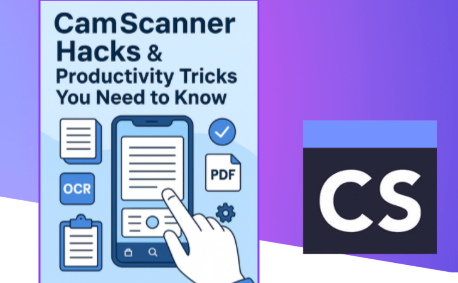
Essential Features of CamScanner
Scanning Documents Efficiently
CamScanner doesn’t just take pictures—it replicates the output of a professional scanner. You can adjust focus, lighting, and clarity to ensure every document comes out crisp.
Using Auto-Crop and Auto-Enhance for Perfect Results
The app automatically detects document boundaries and crops them accurately. Pair auto-crop with the built-in enhancement filters—such as Magic Color or Black & White—for clean, sharp scans that look professional.
Organizing Your Documents
Creating Folders and Tags
A cluttered document library slows down productivity. Use folders and tags to categorize files based on project, subject, or urgency. This simple organization hack eliminates the frustration of searching through dozens of scans later.
CamScanner Productivity Hacks
Batch Scanning for Speed
Instead of capturing pages one by one, use batch mode to scan multiple pages quickly. This feature is perfect for large documents such as contracts, homework, books, or receipts.
OCR for Text Extraction
Converting Images Into Editable Text
CamScanner’s Optical Character Recognition (OCR) converts scanned pages into editable, searchable text. This is especially helpful when you need to copy, edit, quote, or translate information without manually retyping it.
Cloud Integration Tips
Syncing Your Files Across Devices
With cloud integration, CamScanner keeps your files synced across Google Drive, Dropbox, OneDrive, and more. This ensures your documents are always accessible whether you’re on your phone, laptop, or tablet.
Quick and Smart Sharing Techniques
Email, Link, and QR Code Sharing
CamScanner makes sharing effortless. You can email PDFs directly, generate shareable download links, or even create QR codes for instant access. QR sharing is especially useful for events, team collaborations, and classrooms.
Advanced CamScanner Tricks You Should Be Using
Password-Protecting Sensitive Documents
For confidential files—such as legal papers, financial documents, or IDs—you can add password protection. This adds an extra layer of security and ensures only authorized people can open your scans.
Watermarking and Branding Your Files
If you want to maintain a consistent brand identity, CamScanner lets you add custom watermarks or your company logo. This reduces misuse and helps your documents look more professional.
Using Shortcuts and Home Screen Widgets
CamScanner offers widgets and quick actions for instant scanning, uploading, or sharing. These shortcuts are ideal for professionals who need fast, one-tap access to core features.
CamScanner for Professionals
Legal and Business Applications
Lawyers, business owners, and office professionals can use CamScanner to manage contracts, invoices, receipts, and client letters. Features like batch mode and OCR save hours of manual processing, making administrative work more efficient.
Education and Student Productivity
Students can scan lecture notes, book pages, handouts, and assignments. With searchable text and easy sharing, group studies and project collaborations become much smoother.
Common Mistakes to Avoid
Scanning Too Many Unnecessary Documents
Not every paper needs to be digitized. Over-scanning creates clutter and makes it harder to find important files. Scan what you need and delete duplicates regularly.
Ignoring Backup and Sync Options
Failing to sync your files can lead to permanent data loss. Always enable cloud backup so your documents remain safe even if you switch devices or lose your phone.
Conclusion
CamScanner is far more than a simple scanning app—it’s a complete document productivity toolkit. By learning these hacks, exploring its advanced features, and avoiding common mistakes, you can dramatically improve your workflow. Whether you’re a student, a business professional, or someone who deals with paperwork daily, these CamScanner tips will help you stay organized, efficient, and productive.
FAQs
1. Can I use CamScanner offline?
Yes. You can scan documents without internet access, but features like sharing and cloud sync require a connection.
2. How accurate is the OCR feature?
OCR works extremely well with clear, high-resolution text documents. Handwritten notes may need manual correction.
3. Is CamScanner safe for sensitive files?
Yes. With password protection and secure cloud storage, your documents remain protected.
4. Can I scan multiple pages at once?
Absolutely. Batch scanning allows you to capture multiple pages in one go, saving time and effort.
5. How do I integrate CamScanner with Google Drive?
Go to Settings → Cloud Storage → Google Drive → Sign In. Once linked, your scans will sync automatically.