
Libraries today are no longer limited to rows of shelves and traditional card catalogs. As information centers move toward digital-first services, efficient document scanning becomes essential. CamScanner, a versatile mobile scanning application, has emerged as a practical solution for libraries aiming to digitize catalogs, archives, and administrative records quickly and affordably.
This guide explores how libraries can use CamScanner to streamline workflows, increase accessibility, and preserve valuable collections.
Why Digitization Matters in Modern Libraries
Libraries often preserve decades—or even centuries—of historical and administrative information. While traditional cataloging systems have served well, they come with several limitations:
- Physical storage constraints
- Slow, manual searching
- Limited remote accessibility
- Risk of physical deterioration
Digitization eliminates these barriers by creating structured, searchable, and easily shareable digital repositories. These digital catalogs support both in-library efficiency and remote access for patrons and staff.
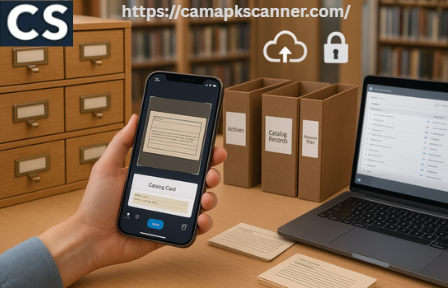
Benefits of Using CamScanner for Library Cataloging and Record Management
1. Rapid and Efficient Scanning
CamScanner enables librarians to scan hundreds of pages in minutes compared to manual data entry or flatbed scanning. Its auto-capture and batch-scanning modes significantly reduce workload.
2. Searchable Digital Files with OCR
The built-in Optical Character Recognition (OCR) converts scanned images into searchable, editable text. This is especially useful for:
- Printed catalogs
- Index cards
- Administrative reports
- Historical reference materials
3. Portability and Accessibility
Digitized files can be accessed across desktops, smartphones, and cloud platforms, enabling seamless collaboration among staff and allowing patrons to access information remotely.
4. Cost-Effective Archiving
Digitization reduces physical storage needs, minimizes handling of fragile materials, and cuts down on printing and photocopying costs.
Preparing Library Materials for Digitization
Inspecting and Preparing Physical Documents
Before scanning, librarians should:
- Remove staples, bindings, and clips
- Flatten creased pages
- Repair delicate or torn pages
- Clean dust or stains that can affect OCR
These small steps dramatically improve image quality and recognition accuracy.
Organizing Materials for a Smooth Workflow
Categorizing documents before scanning prevents confusion later. You can organize by:
- Year or decade
- Subject or genre
- Department or section
- Document type (catalogs, records, reports, manuscripts)
Consistent organization ensures high-quality digital archiving and easy database integration.
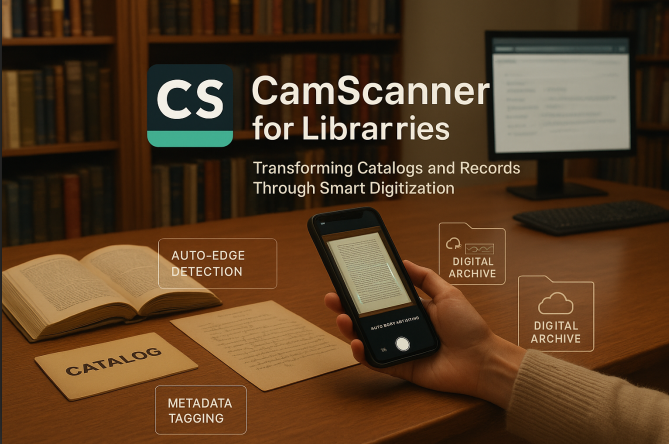
A Step-by-Step Guide to Scanning Library Records with CamScanner
1. Capturing High-Quality Images
Good lighting and proper alignment are crucial. CamScanner automatically detects edges and corrects perspective, but starting with a clear photo significantly improves results.
Tips:
- Use bright, even lighting
- Hold the camera steady
- Ensure the page fills most of the frame
2. Using Auto-Crop and Enhancement Tools
CamScanner’s built-in tools include:
- Auto-crop
- Color correction
- Brightness and contrast adjustment
- Image sharpening
These features help produce crisp, readable scans with minimal manual editing.
3. Batch Scanning Large Collections
For high-volume digitization projects, batch mode allows librarians to capture multiple pages rapidly and merge them into one continuous PDF or document file.
4. Applying Smart Naming Conventions and Metadata
Consistent naming prevents confusion and speeds up retrieval. Libraries can use formats like:
Year_CollectionType_DocumentName
orSection_Subject_CatalogNumber
Adding metadata—such as tags, author names, or publication dates—enhances searchability within internal databases.
Understanding OCR in CamScanner: Turning Images into Searchable Text
How OCR Works
OCR analyzes the shapes of letters in your scan and converts them into machine-readable text. This benefits libraries by enabling:
- Full-text search
- Quick filtering by keyword
- Easier catalog updates
- Editable exports
Improving OCR Accuracy for Library Materials
To achieve optimal OCR results:
- Avoid shadows and glare
- Align pages properly
- Use high-contrast scanning modes
- Manually proofread historical or handwritten documents
Older manuscripts or handwritten notes may require correction, as OCR performs best on printed material.
Integrating CamScanner Files with Library Management Systems
Exporting in Multiple Formats
CamScanner supports several output formats, including:
- PDF (ideal for permanent records)
- Word (editable catalog entries)
- Excel (useful for tabular data or indexing)
This flexibility makes it easy to integrate digitized content into most library management systems.
Cloud Storage and Collaboration
Cloud options (Google Drive, OneDrive, Dropbox, etc.) allow libraries to:
- Store catalogs securely
- Share files with staff
- Provide remote access to patrons
- Sync updated documents across devices
Security and Digital Preservation
Protecting Sensitive Information
Libraries often manage confidential and rare materials. CamScanner includes:
- Password-protected PDFs
- Encrypted cloud storage
- Restricted sharing options
These features help safeguard patron data and archival resources.
Backup Strategies for Long-Term Preservation
To avoid data loss, libraries should:
- Keep multiple backups
- Use both local and cloud storage
- Set up automated backup schedules
- Follow digital preservation best practices
Practical Tips for Streamlining Library Digitization Projects
Optimizing Staff Schedules and Workflows
Set dedicated scanning times to reduce disruptions. Group tasks—for example, scanning all catalog cards from a particular section in one session—to maintain consistency.
Training Library Staff
Brief hands-on training helps staff:
- Use CamScanner features effectively
- Correct OCR errors
- Organize files with naming conventions
- Sync and share files using cloud integrations
A trained team ensures smooth, error-free digitization.
Real-World Example: Libraries Successfully Using CamScanner
Several libraries worldwide have adopted CamScanner to modernize their operations.
For instance, a major City Central Library in the United States digitized more than 50,000 catalog records, improving search speed by 70% and providing seamless accessibility for remote users.
This transformation showcases the practicality of mobile digitization tools for large institutions.
Conclusion: A Smarter Way to Preserve and Share Library Knowledge
CamScanner is more than a mobile scanner—it’s a strategic tool that helps libraries transition into the digital age. By digitizing catalogs, administrative records, and historical documents, libraries can:
- Enhance accessibility
- Improve operational efficiency
- Reduce physical storage burdens
- Protect valuable collections
With well-planned workflows, proper staff training, and secure backup strategies, libraries can create sustainable digital archives that benefit both staff and community members.
Frequently Asked Questions (FAQs)
1. Can CamScanner handle large volumes of documents?
Yes. Batch scanning and automated processing make it suitable for large-scale digitization projects.
2. Is OCR reliable for old or handwritten documents?
OCR works best with printed text. Handwritten or damaged materials may need manual proofreading.
3. Can CamScanner files be used with library management systems?
Absolutely. You can export in PDF, Word, or Excel formats for easy integration.
4. How secure is the data scanned through CamScanner?
CamScanner provides encryption, password-protected files, and secure cloud storage for sensitive content.
5. Is CamScanner cost-effective for libraries?
With free and premium plans available, libraries can choose based on their needs. Premium features—like high-quality OCR and batch scanning—are especially useful for large archives.