
Introduction: Why Exporting From CamScanner Matters
CamScanner has become a global favorite for scanning, organizing, and digitizing documents. Whether you’re a student scanning notes, a professional managing invoices, or a lawyer handling case evidence, choosing the right export format is essential.
This guide walks you through exactly how to export CamScanner files to Excel, Word, PDF, images, TXT, and cloud platforms—with practical tips to ensure accuracy and efficiency.
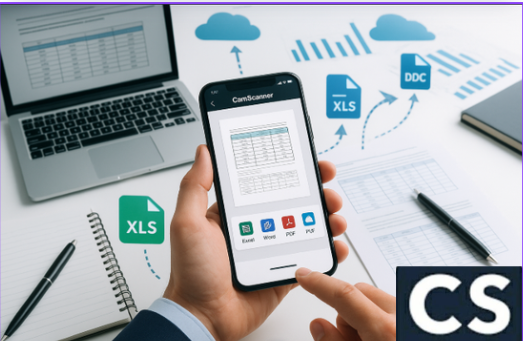
Understanding CamScanner’s Export Capabilities
Why Exporting Your Scans Is Essential
Different file formats serve different purposes:
- Need editable text? Export to Word.
- Want to analyze numbers or extract tables? Export to Excel.
- Need a universally compatible file? Export to PDF.
This flexibility is why CamScanner supports a wide range of output formats, making it adaptable to any workflow.
Supported Export Formats in CamScanner
CamScanner allows exporting to:
- JPG/PNG
- Word (DOC/DOCX)
- Excel (XLS/XLSX)
- TXT
- Searchable PDF (OCR-enabled)
- Cloud storage formats (Google Drive, OneDrive, Dropbox)
With these options, organizing and sharing your documents becomes effortless.
Preparing Your Documents for Export
Capture High-Quality Scans for Best Results
The accuracy of your export—especially OCR—depends on scan quality. Always ensure:
- Bright lighting
- No shadows
- A steady hand
- Flat, wrinkle-free documents
Good input equals excellent output.
Use CamScanner’s Automatic Enhancements
CamScanner offers intelligent tools that improve legibility:
- Auto-crop
- Smart enhancement filters
- Background cleanup
- Color-to-black-and-white conversion
These tools help produce clear, professional-grade scans.
Organize Files With Proper Naming Conventions
Consistent naming saves time when exporting multiple documents. Examples:
- Invoice_January_2025
- Client_Agreement_Final
- Attendance_Record_March
This ensures smooth workflows and easy retrieval.
How to Export CamScanner Files to Excel (XLS/XLSX)
Why Export to Excel?
Exporting to Excel helps you:
- Edit numbers
- Extract tables
- Organize data
- Rebuild forms and sheets digitally
Perfect for financial documents, attendance sheets, and data-heavy paperwork.
Step-by-Step: Exporting Scans as Excel Files
- Open CamScanner and select the scanned document.
- Tap Share or Export.
- Choose Excel (XLS/XLSX).
- Allow CamScanner to perform OCR and detect tables.
- Export to your device or upload to a cloud platform.
The entire process is quick and surprisingly accurate.
Improve OCR Accuracy for Excel Exports
Tips for better results:
- Ensure high-contrast text
- Use typed text whenever possible
- Avoid curved or skewed documents
Handwriting can work—but often requires manual correction.
Exporting Tables and Forms Accurately
CamScanner intelligently recognizes:
- Invoices
- Financial tables
- Attendance sheets
- Registration forms
It converts them into clean spreadsheet cells automatically.
Best Practices for Excel Files
After exporting:
- Check merged cells
- Verify numbers (especially 0 vs. O errors)
- Reformat columns (dates, currency, percentages)
This ensures a clean, editable Excel file.
How to Export CamScanner Files to Word (DOC/DOCX)
Why Export to Word?
Word format is ideal when you need fully editable text from printed documents, reports, manuals, or notes.
Step-by-Step: Exporting CamScanner Files as Word Documents
- Open your scan in CamScanner.
- Tap Export > Word (DOC/DOCX).
- Let OCR convert the text.
- Save or share the editable Word file.
This is the easiest method to turn printed pages into digital documents.
OCR-Based Editable Text Extraction
CamScanner’s OCR accurately converts:
- Printed pages
- Reports
- Book excerpts
- Typed notes
You can instantly edit, format, or rewrite content.
Formatting Tips After Exporting to Word
Once the document opens in Word:
- Recheck headings and bold text
- Align paragraphs as needed
- Fix bullet points or numbering
- Adjust spacing for readability
This ensures a polished, professional document.
How to Export CamScanner Files to PDF
Why PDF Is the Most Popular Format
PDF is universal, easy to share, secure, and ideal for official documents.
Standard PDF Export Steps
CamScanner allows exporting:
- Single pages
- Multi-page PDFs
- Standard or high-resolution files
- With or without watermarks
Just tap Export > PDF and choose your settings.
Using PDF/A for Long-Term Storage
PDF/A is recommended for:
- Legal evidence
- Contracts
- Government submissions
- Archival records
It ensures the file remains readable years into the future.
How to Export CamScanner Files as JPG or PNG
When to Use Image Formats
Image exports are perfect for:
- Presentations
- Social media posts
- Uploading images to forms or portals
- Sending pages individually
Tips for High-Quality Image Exports
- Use 300 DPI for printing
- Use 150 DPI for screen use
- Avoid zooming while scanning
Clear images improve professionalism and readability.
Extracting Plain Text: Exporting to TXT and Other Text Formats
Benefits of TXT Exports
TXT exports remove formatting and keep only raw text—perfect for:
- Writers
- Students
- Researchers
- Note digitization
Best Use Cases for Plain Text Files
TXT is ideal when:
- You only need the text
- Layout doesn’t matter
- You want lightweight, editable files
Exporting CamScanner Files to Cloud Services
Export to Google Drive
- Tap Share.
- Select Upload to Google Drive.
- Choose the folder and format.
Export to OneDrive
Similar steps—great for business and Microsoft 365 users.
Sharing via Email or Download Links
You can share:
- Password-protected PDFs
- Editable Word/Excel files
- Secure download links
Perfect for teamwork and collaboration.
Troubleshooting CamScanner Export Issues
Fixing OCR Errors
OCR may fail with:
- Handwriting
- Blurry scans
- Low contrast
- Curved pages
Solution: Rescan with good lighting and proper alignment.
Handling Formatting Problems
If tables or headings look incorrect:
- Adjust manually in Word or Excel
- Fix alignment, spacing, or layout
Solving File Compatibility Issues
If a file won’t open:
- Check the extension
- Convert to PDF
- Update your software
Most compatibility issues are easily resolved.
Conclusion
Exporting CamScanner files to Excel, Word, PDF, TXT, images, or cloud storage is simple once you understand the workflow. Whether you’re digitizing school notes, handling business documents, or preparing legal evidence, CamScanner offers powerful export tools that streamline your entire document process.
With the steps in this guide, you’ll be exporting your files smoothly and professionally every time.
FAQs
1. Does CamScanner export handwritten notes to Excel?
Yes, but OCR accuracy is better with typed text. Handwritten data may require manual adjustments.
2. Can I export multiple CamScanner files together?
Yes—batch export allows you to combine scans into a single PDF or grouped images.
3. How do I export without a watermark?
Use CamScanner Premium. Free accounts may apply a watermark.
4. Can I convert directly to Google Docs format?
Not directly, but exporting as Word and uploading to Google Docs works perfectly.
5. Does CamScanner export to CSV?
Not directly, but you can export to Excel and then save the file as CSV in Excel.