
Introduction: The Digital Shift in Modern Creativity
In today’s creative landscape, the line between traditional and digital art is fading faster than ever. Many artists prefer sketching on paper but rely on digital tools to refine, color, or finalize their artwork. Designers, too, move quickly between hand-drawn concepts and digital workspaces.
This is where CamScanner becomes an essential creative tool. It’s not just a mobile scanner—it’s a fast, accurate, and highly portable way to digitize sketches, illustrations, and design concepts with remarkable clarity.
CamScanner as a Creative Tool
Why Artists and Designers Love Using CamScanner
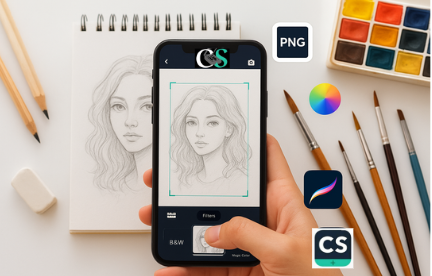
CamScanner isn’t limited to business documents. For illustrators, painters, graphic designers, and hobbyists, it offers a simple and effective way to turn physical art into high-quality digital files.
What Makes CamScanner Ideal for Creative Work
Artists appreciate CamScanner because it preserves:
- Fine pencil lines
- Subtle shading
- Paper textures
- Color details
Thanks to tools like auto-cropping, perspective correction, and image enhancement, digitizing your artwork becomes quick and precise.
CamScanner vs. Traditional Scanners
Why Mobile Scanning Is More Convenient
Traditional flatbed scanners require setup, desk space, and controlled lighting. CamScanner offers a simpler alternative:
- Scan anytime, anywhere
- Automatic edge detection
- Instant enhancement and editing
- Easy exporting to design software
- High-resolution image output
For everyday creative use, CamScanner is faster, more flexible, and far more convenient.
Preparing Your Artwork for Scanning
Lighting Tips for Clean, Clear Scans
Lighting can make or break your scan. For best results:
- Use natural daylight whenever possible
- Indoors, choose soft white lighting
- Avoid glare or harsh shadows
Positioning Your Artwork Correctly
Hold your phone directly above the artwork to prevent distortion. A flat surface and even placement ensure straight, accurate scans.
Avoiding Shadows and Unwanted Reflections
Keep your hands and phone from casting shadows. A simple tripod or phone stand can dramatically improve stability and image quality.
How to Scan Sketches & Art Using CamScanner
Step-by-Step Scanning Process
- Open CamScanner and tap the camera icon
- Place your phone above the artwork
- Capture the scan
- Let CamScanner auto-detect the edges
- Manually adjust the crop if necessary
- Apply the best filter for your art style
- Save and export the digital file
Choosing the Best Filters for Art
- Magic Color / B&W → Great for pencil sketches
- Color / Original → Perfect for watercolor, markers, or colored art
Enhancing Artwork in CamScanner
Boosting Clarity, Contrast & Vibrance
Once your sketch is scanned, you can adjust:
- Brightness
- Contrast
- Sharpness
- Clarity
These enhancements make pencil lines and shading pop, especially if you plan to digitize or ink the artwork later in software like Procreate or Photoshop.
Color Correction for Traditional Media
Watercolor, acrylic, and marker art sometimes loses vibrancy. To restore color accuracy:
- Slightly increase saturation
- Adjust brightness for a natural paper tone
- Fine-tune contrast to highlight brush details
Turning Scans Into Digital Art
Best Export Formats for Digital Editing
CamScanner supports JPG, PNG, and PDF. For artists:
- PNG → Best for Procreate, Photoshop, Illustrator
- JPG → Ideal for simple sketches
Converting Sketches Into Clean Line Art
Use CamScanner to lighten your sketch, then ink digitally:
- Import into your art app
- Lower opacity
- Ink on a new layer
- Preserve the structure with cleaner lines
Digital Painting Over Scanned Sketches
Your scanned sketch becomes a perfect base layer. Lock it, reduce opacity, and paint above it for seamless digital artwork.
CamScanner for Professional Designers
Digitizing Logos, Icons & Typography
Designers often sketch logo ideas or type concepts. Scanning them with CamScanner produces crisp files that are easy to vectorize in Illustrator.
Creating Client Mockups Quickly
From layout drafts to packaging concepts, scanning hand-drawn mockups helps designers:
- Share ideas instantly
- Present polished visuals
- Speed up client approvals
Best Practices for High-Quality Digital Art Scans
Recommended Settings and File Types
For professional results:
- Use PNG for illustrations
- Use JPG for rough sketches
- Enable high-resolution output
- Avoid compression when exporting
Preserving the Texture of Your Artwork
If your artwork relies on texture, such as pencil, charcoal, or watercolor:
- Use soft, indirect lighting
- Stick with “Original” mode
- Avoid overusing filters
Cloud Storage & Collaboration for Creatives
Sharing Artwork Effortlessly
CamScanner lets you export directly to:
- Google Drive
- Dropbox
- OneDrive
Perfect for quick client feedback or team collaboration.
Organizing Your Art Digitally
Create folders based on:
- Projects
- Clients
- Medium
- Timeline
This keeps your portfolio structured and easy to manage.
Conclusion
CamScanner has become an indispensable tool for artists and designers looking to bridge traditional and digital workflows. Whether you’re scanning detailed sketches, enhancing illustrations, or sending digital mockups to clients, CamScanner transforms your smartphone into a portable creative studio. With the right lighting, settings, and techniques, your physical artwork can be converted into high-quality digital files ready for editing, coloring, or professional publishing.
FAQs
1. Is CamScanner suitable for professional artwork?
Absolutely. With proper lighting and settings, CamScanner produces high-resolution, detailed scans ideal for professional editing and publishing.
2. What file format is best for digital editing?
PNG is recommended because it retains detail and supports transparency, making it perfect for Procreate, Photoshop, and Illustrator.
3. Can CamScanner capture colored artwork accurately?
Yes. Use Color or Original filters to preserve watercolor, marker, and acrylic tones.
4. How can designers use CamScanner with clients?
Designers can digitize sketches, create mockups, share visual drafts, and collaborate quickly through cloud exports.
5. Does CamScanner distort artwork?
Not when used properly. Good lighting and direct positioning ensure your artwork remains proportionally accurate.