
Introduction
Scanning handwritten notes may seem simple, but achieving crisp, clear, and readable results requires a mix of preparation, technique, and the right CamScanner settings. As we rely more on digital tools every day, capturing handwritten ideas with perfect clarity has never been more important. In this guide, we explore advanced methods to help you get the sharpest, most professional-quality scans straight from your smartphone.
Why Scanning Handwritten Notes Matters
Handwritten notes often include ideas, sketches, diagrams, and personal shorthand. When scanned correctly, they become easier to store, organize, share, and study. Clear scans also enhance OCR accuracy, allowing your writing to be converted into searchable digital text. Essentially, the better the scan, the more useful your notes become.
Preparing Your Notes Before Scanning
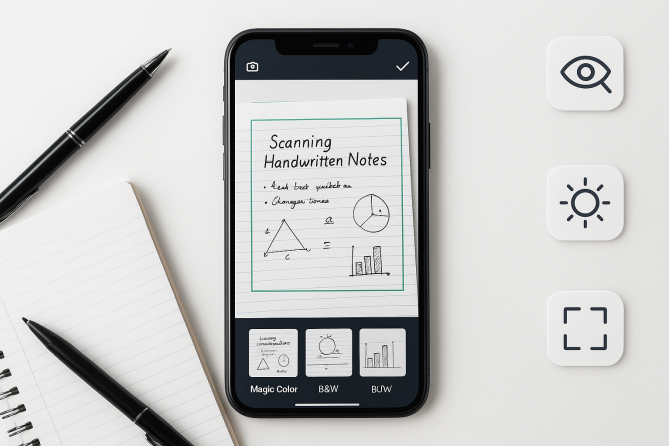
Before using CamScanner, a little preparation goes a long way. Think of it like preparing a canvas before painting—clean, flat, and well-lit surfaces always give the best results.
Clean the Page Surface
Dust, smudges, or shadows can distort your scan. Gently wipe the page or remove any objects casting shadows. A clean surface ensures CamScanner’s algorithms detect edges accurately.
Improve Lighting Conditions
Natural daylight is ideal. Avoid strong overhead lights that create harsh shadows or glare. If you’re scanning at night, use diffused lighting or take advantage of CamScanner’s brightness correction.
Straighten and Flatten Your Notes
If your page is bent or curved, the scan may look distorted. Place the notebook on a flat, stable surface and use a paperweight if needed. Straight pages produce straighter scans — it’s that simple.
Advanced CamScanner Techniques for Clear Scans
Now that your notes are ready, it’s time to explore techniques that separate a decent scan from a crystal-clear one.
Choosing the Right Scan Mode
CamScanner offers different modes for image quality, and choosing the right one can make a significant difference.
Auto vs. Manual Mode
Auto Mode is great for quick scans, but Manual Mode gives you full control over cropping, exposure, and clarity. When scanning handwritten notes, manual mode often yields better results.
When to Use High-Definition Mode
If your handwriting includes thin strokes, calligraphy, or small text, High-Definition (HD) Mode preserves finer details. It’s perfect for students, designers, and researchers who rely on precision.
Using Advanced Edge Detection
CamScanner’s edge detection automatically identifies the borders of the page. However, for detailed notes or pages with unusual layouts, manual edge adjustments ensure that no part of your writing gets cropped out.
Manual Cropping for Precision
Always review the cropping window before saving the scan. Adjusting the corners manually guarantees sharp edges and prevents unwanted background from entering the frame.
Applying the Right Filters
Filters determine the color tone, contrast, and intensity of your final image. Different notes work best with different filters.
Magic Color
This enhances brightness and clarity, making faded ink more readable. It’s ideal for daily classroom notes or brainstorming sessions.
B&W 1 & B&W 2
These filters produce sharp black-and-white scans—excellent for dark ink on white paper. B&W 2 is more intense, perfect for faint handwriting.
Grayscale Mode
Choose grayscale if your notes include drawings, sketches, or mathematical formulas. It maintains detail without harsh contrast.
Enhancing Contrast for Handwritten Notes
Contrast is the secret behind crisp scans. Increasing contrast boosts readability, especially for faint handwriting or notes written with pencil. But avoid overdoing it—too much contrast can cause ink bleeding or harsh edges.
Using OCR for Handwritten Notes
CamScanner’s OCR (Optical Character Recognition) feature helps convert handwritten content into editable text. While OCR works best with neat handwriting, using the right scan settings greatly improves results.
Tips to Improve OCR Accuracy
- Use dark ink pens (preferably black)
- Keep handwriting straight and evenly spaced
- Scan in HD mode
- Ensure adequate lighting
- Apply Magic Color or Grayscale before OCR
Supported Handwriting Styles
CamScanner recognizes most common handwriting styles, but cursive, artistic lettering, and highly stylized handwriting may not convert accurately. Block letters usually deliver the best OCR performance.
Organizing and Exporting Your Scanned Notes
High-quality scans deserve high-quality organization. CamScanner makes it easy to save, sort, and export notes.
Naming Conventions
Use consistent, descriptive names such as:
- “Physics_Lecture_Notes_Chapter_3”
- “Meeting_Notes_DesignIdeas”
- “Project_Research_Diagrams”
Clear names help you find files quickly in the future.
Exporting as PDF or Image
PDF is ideal for sharing and archiving.
JPEG or PNG files are best for inserting notes into slides, documents, or digital notebooks.
Choose the format based on how you plan to use the notes.
Common Mistakes to Avoid
Even experienced users make simple mistakes that ruin scan quality. Avoid the following:
- Scanning in low light
- Tilting your phone while capturing
- Overusing filters
- Applying too much contrast
- Scanning through a plastic sleeve or glare surface
- Relying only on Auto Mode
Avoid these, and your scans will always look professional.
Conclusion
Scanning handwritten notes clearly in CamScanner isn’t just about snapping a picture—it’s about understanding lighting, filters, cropping, and advanced settings to get the cleanest results possible. When used effectively, CamScanner transforms simple handwritten pages into clean, searchable, and professionally digitized documents. With the techniques we’ve covered, you can ensure that every scan—whether for school, work, or personal use—is sharp, clear, and ready to use anywhere.
FAQs
1. Which filter is best for handwritten notes?
Magic Color or B&W 1 usually works best, depending on ink darkness and paper quality.
2. How do I reduce shadows in my scan?
Use natural lighting or position a diffused light source directly above the page.
3. Can CamScanner scan pencil notes clearly?
Yes, but use Grayscale mode and increase contrast slightly for best results.
4. Does OCR work on cursive handwriting?
OCR works best on neat block letters. Cursive may produce mixed results.
5. How can I improve clarity for faded ink?
Use HD Mode, apply the Magic Color filter, and adjust brightness and contrast manually.