
Introduction: Why Digitizing Your Memories Matters
In today’s digital-first world, preserving old paper documents and family photographs has become essential. Many of us have boxes, drawers, and albums filled with fading pictures, certificates, letters, and important papers. CamScanner makes it easier than ever to convert these fragile items into high-quality digital files within minutes—right from your smartphone.
This guide walks you step by step through the entire process, from preparation to advanced scanning techniques.
Why It’s Important to Digitize Old Photos & Documents
Preserve Precious Memories for the Future
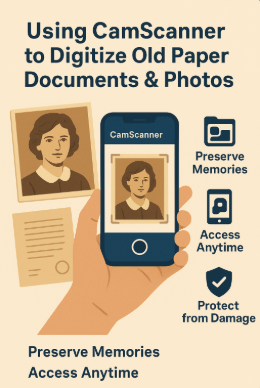
Paper naturally fades, tears, and discolors over time. Digitizing helps preserve these memories indefinitely so they can be passed on to future generations without risk of degradation.
Access Everything Easily Anytime
Instead of searching through dusty folders and boxes, digitized files let you keep everything neatly stored on your phone, tablet, or computer—making retrieval fast and effortless.
Protection From Accidents or Damage
Physical documents can be destroyed by water leaks, fires, mold, termites, or everyday wear and tear. Digital backups stored in multiple locations ensure your files remain safe regardless of what happens.
What Is CamScanner? A Simple Tool for Digital Preservation
A Powerful Scanning App for Everyday Use
CamScanner is a widely used mobile app designed to convert physical documents into clear PDF or JPEG files with the help of your smartphone camera.
Key Features That Make CamScanner Stand Out
- Crisp, high-quality scanning
- Automatic edge detection
- Color and clarity enhancement filters
- OCR (Optical Character Recognition) for text extraction
- Cloud backup options
- Simple sharing tools
Its ability to deliver professional-level results using just your phone is what sets CamScanner apart.
How to Prepare Old Documents & Photos for Scanning
Clean Dust and Smudges Gently
Use a soft microfiber cloth to remove dust, fingerprints, or residue. Clean documents produce significantly sharper scans.
Flatten Curled or Fragile Paper
Old photos often curl over time. Place them under a heavy book for a few hours to make scanning easier and more accurate.
Organize Items Before Scanning
Sort your items into categories such as:
- Certificates
- Receipts
- Old photographs
- Manuals
- Handwritten notes
This helps streamline your scanning workflow and prevents confusion later.
How to Digitize Documents & Photos Using CamScanner
Step 1: Install and Set Up the App
Download CamScanner from the Google Play Store or Apple App Store and allow camera access when prompted.
Step 2: Choose the Best Scan Mode
CamScanner offers several modes:
- Single Scan – individual documents
- Batch Scan – bulk scanning
- ID Scan – for ID cards
- Book Scan – auto-splitting of left/right pages
For scanning many photos at once, Batch Mode saves a lot of time.
Step 3: Capture the Clearest Scan Possible
Use Proper Lighting
Natural light or a bright lamp provides even illumination with fewer shadows.
Position the Camera Correctly
Hold your phone parallel to the document to avoid distortion and ensure accurate edge detection.
Step 4: Edit, Enhance, and Perfect Your Scans
CamScanner’s editing tools allow you to:
- Adjust brightness
- Remove shadows
- Crop edges precisely
- Restore colors in old photos
These tools help achieve cleaner, sharper results.
Step 5: Save, Name, and Organize Files Properly
Use clear, searchable titles such as:
- “Photo_Grandfather_1975”
- “Birth_Certificate_1988”
Create folders to maintain an organized digital archive.
Best CamScanner Features for Old Photo Restoration
Automatic Enhancement for Better Clarity
The auto-enhancement tool improves sharpness, lighting, and visual quality instantly.
Color Restoration Filters
Filters such as:
- Magic Color
- Original
- Grayscale
help revive faded or yellowing photos.
High-Resolution Export Options
Export scans in HD or full resolution for high-quality archiving.
How to Organize Your Digital Archive Efficiently
Create a Logical Folder Structure
Use folders such as:
- Family Photos
- Legal Documents
- Educational Certificates
- Receipts
Use Tags and Descriptive Titles
Tags make files searchable within seconds, especially when your library grows large.
Back Up Everything to the Cloud
To prevent data loss, store copies on:
- Google Drive
- Dropbox
- iCloud
- External hard drives
Common Scanning Mistakes to Avoid
Avoid Poor Lighting
Low light creates blurry scans with heavy shadows.
Don’t Use Low Resolution
For long-term preservation, always select the highest resolution available.
Never Skip File Naming
Leaving files unnamed makes archiving chaotic later.
Advanced Tips for Professional-Quality Scans
Use an External Light Source
A ring light or LED desk lamp reduces shadows and creates even brightness.
Handle Very Old Photos With Care
Place fragile photos on a contrasting background so CamScanner can detect edges more accurately.
Use OCR for Handwritten Notes
CamScanner’s OCR tool converts readable handwriting into digital text—ideal for letters, diaries, and notes.
Best Alternatives to CamScanner
Adobe Scan
Great for converting documents into high-quality PDFs and excellent OCR performance.
Google PhotoScan
Specifically designed for digitizing old photographs with glare reduction.
Microsoft Lens
Ideal for documents, whiteboards, and business use.
Conclusion: Preserve Your History With CamScanner
Digitizing old paper documents and photographs using CamScanner is one of the most effective ways to protect and preserve your memories. With its user-friendly interface, advanced editing tools, and cloud integration, CamScanner makes the digitization process quick, reliable, and accessible. Whether you’re safeguarding family photos or archiving essential documents, this app ensures your digital memories stay organized and secure for years to come.
FAQs
1. Is CamScanner good for scanning old photographs?
Yes. Its enhancement filters and color restoration tools help old photos look clearer and more vibrant.
2. Can I save scans directly to Google Drive?
Yes, CamScanner supports direct cloud uploads to Google Drive, Dropbox, and other platforms.
3. Do scanned photos lose quality?
If you use good lighting and high-resolution settings, your scans will remain sharp and clear.
4. Is CamScanner free?
The free version is excellent for essential scanning. Premium features offer additional tools and export options.
5. Can I scan fragile documents safely?
Absolutely. Place them on a clean, stable surface and handle them gently while scanning.