
Why Backing Up Digital Scans Matters More Than Ever
In today’s fast-moving digital era, efficient document management is a necessity for professionals, entrepreneurs, students, and everyday users. While CamScanner is an excellent tool for capturing and digitizing documents, scans alone aren’t enough—you must back them up securely. Cloud sync ensures your files remain protected, organized, and accessible whenever you need them. This guide walks you through the best practices for using CamScanner with cloud storage to safeguard your important documents.
Introduction: The Real Risk of Losing Your Digital Documents
Imagine losing months of receipts, contracts, or project documents because your phone crashes or an app gets deleted. It’s a stressful scenario—but completely avoidable. CamScanner’s cloud sync feature ensures your scanned files stay safe and recoverable by automatically storing them in the cloud. With the right setup, your documents remain available anywhere and on any device.
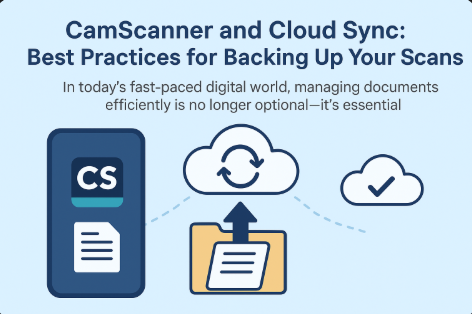
What Is CamScanner and Why It’s So Popular
CamScanner is a powerful mobile scanning app that turns your smartphone into a portable, high-quality scanner. Whether you need to digitize business cards, receipts, agreements, class notes, or personal files, the app provides clear, professional-grade results that are easy to store and share.
Key Features That Make CamScanner Effective
CamScanner comes packed with productivity-enhancing features such as OCR (Optical Character Recognition), PDF exporting, annotation tools, and cloud sync. OCR lets you search for text within images, helping you find documents instantly. Its intuitive interface makes scanning and organizing simple, even for non-technical users.
Why Digital Document Management Is Essential
Digital documents save space, reduce clutter, and enhance workflow efficiency. Unlike paper files—which can be lost, damaged, or misplaced—digital copies can be categorized, backed up, encrypted, and shared instantly. Cloud syncing adds another layer of safety by creating an off-device, accessible backup.
What Is Cloud Sync and How It Helps You
Cloud sync automatically uploads and updates your documents in a cloud storage service. This ensures your files stay synchronized across devices, allowing you to access the latest version anytime—from your phone, laptop, or tablet.
How CamScanner’s Cloud Sync Feature Works
Once cloud sync is enabled, CamScanner uploads each scan to your selected cloud service—whether Google Drive, Dropbox, or iCloud. The app monitors and updates your documents automatically, ensuring that all changes are saved continuously.
Major Benefits of Backing Up Scans With Cloud Sync
- Data Security: Your files remain safe even if your phone is lost, damaged, or stolen.
- Anytime Accessibility: View and download documents from any device.
- Easy Sharing: Share documents with teams, clients, or collaborators effortlessly.
- Hands-Free Updates: No need for manual uploads—the app handles syncing for you.
How to Set Up Cloud Sync in CamScanner
To make your workflow seamless, it’s important to link your cloud accounts correctly. Once configured, every scan is synced securely without extra steps.
Connecting Your Cloud Accounts (Google Drive, Dropbox, iCloud)
Open the CamScanner app and navigate to Settings > Cloud Sync. Select your preferred cloud service, sign in, and grant permissions. Once connected, new scans will automatically sync to your storage.
Automatic vs. Manual Backup: Choosing the Right Method
Automatic syncing uploads every file instantly—perfect for users who scan frequently. Manual backups give you control over which documents get uploaded, making it ideal for confidential or selective files. For most users, combining both methods provides the perfect balance.
Best Practices to Back Up CamScanner Files Efficiently
Proper organization, security, and structure are essential for long-term digital file management. Follow these best practices to keep your documents safe and easy to locate.
How to Organize Your Scans Effectively
Create a clear folder system with categories like Invoices, Receipts, Contracts, Personal Documents, or Projects. Using consistent naming formats—such as 2025-01-15_InvoiceABC—helps you retrieve files faster and keeps your archive clean.
Using Folders and Tags for Smarter File Management
CamScanner’s tag system allows additional sorting layers. Use tags such as Urgent, Reviewed, Pending, Finance, or Tax to filter files instantly, especially when managing large document collections.
Maintaining Version Control to Avoid Errors
If you often revise documents, avoid overwriting your original files. Most cloud services store older versions, but it’s still wise to save important scans as new copies when making edits. This ensures you always have access to the untouched original.
Security Tips to Protect Your Synced Documents
Enable two-factor authentication (2FA) on your cloud storage accounts. Avoid syncing confidential documents to shared drives. If you handle highly sensitive data, encrypt files before uploading them to the cloud.
Troubleshooting Common Cloud Sync Issues
Even well-designed systems can run into syncing problems. Here are the most frequent issues users face and how to resolve them quickly.
Common Cloud Sync Problems
- Sync not starting
- Missing uploaded files
- Duplicate files
- Connection or authorization errors
How to Fix Cloud Sync Issues Step by Step
- Confirm you are logged into the correct cloud account.
- Check your internet connection.
- Update CamScanner to the latest version.
- Clear app cache and retry syncing.
- Contact CamScanner support if problems persist.
Advanced Cloud Sync Tips for Power Users
For heavy-duty users managing hundreds of scans, advanced integrations and automation can significantly enhance productivity and workflow efficiency.
Integrating CamScanner With Other Productivity Tools
You can connect CamScanner with apps like Evernote, OneNote, Slack, or project management systems. This enables smoother collaboration, quick annotations, and automated document sharing across platforms.
Automating Backups for Maximum Convenience
Tools like Zapier allow you to create automated triggers that back up scans to multiple cloud platforms at once or forward documents directly to clients or team members. This eliminates manual tasks and ensures nothing important is overlooked.
Conclusion: Why Cloud Sync Is Essential for CamScanner Users
Cloud sync transforms CamScanner into a complete document management system. By organizing your scans, using folders and tags, securing your data, and integrating cloud services intelligently, you ensure your files stay protected and accessible. For both personal and professional needs, cloud syncing is no longer optional—it’s a smart necessity.
FAQs
Q1: Can I use multiple cloud services with CamScanner?
Yes. You can link multiple cloud accounts, but only one service can be active for automatic syncing at a time.
Q2: Are my documents safe when stored in the cloud?
Yes, especially when using secure platforms and enabling 2FA. For extremely sensitive files, encrypt them before uploading.
Q3: Can I recover deleted scans from the cloud?
Most cloud platforms store deleted files in a trash folder for a limited time, allowing recovery if needed.
Q4: How do I manage large PDF files?
Use CamScanner’s compression feature, and consider splitting oversized PDFs into smaller documents before uploading.
Q5: Does syncing consume mobile data?
Yes. It’s recommended to perform backups over Wi-Fi, especially with large files or frequent scans.
!